CongPlan Live · for Zoom
Be there.
All by itself.
For older publishers who cannot come to the hall · independent, not an official app of the organization
An iPad stays at home. When the meeting runs in Zoom, it joins by itself, as long as CongPlan Live is open. No password, no searching.
Large textFour large buttonsMicrophone off when joiningGerman and English
How it works
Set it up once.
Then the iPad waits.
A helper sets up the iPad, next to the person or over the phone. After that, the person does not have to do anything.
Pair
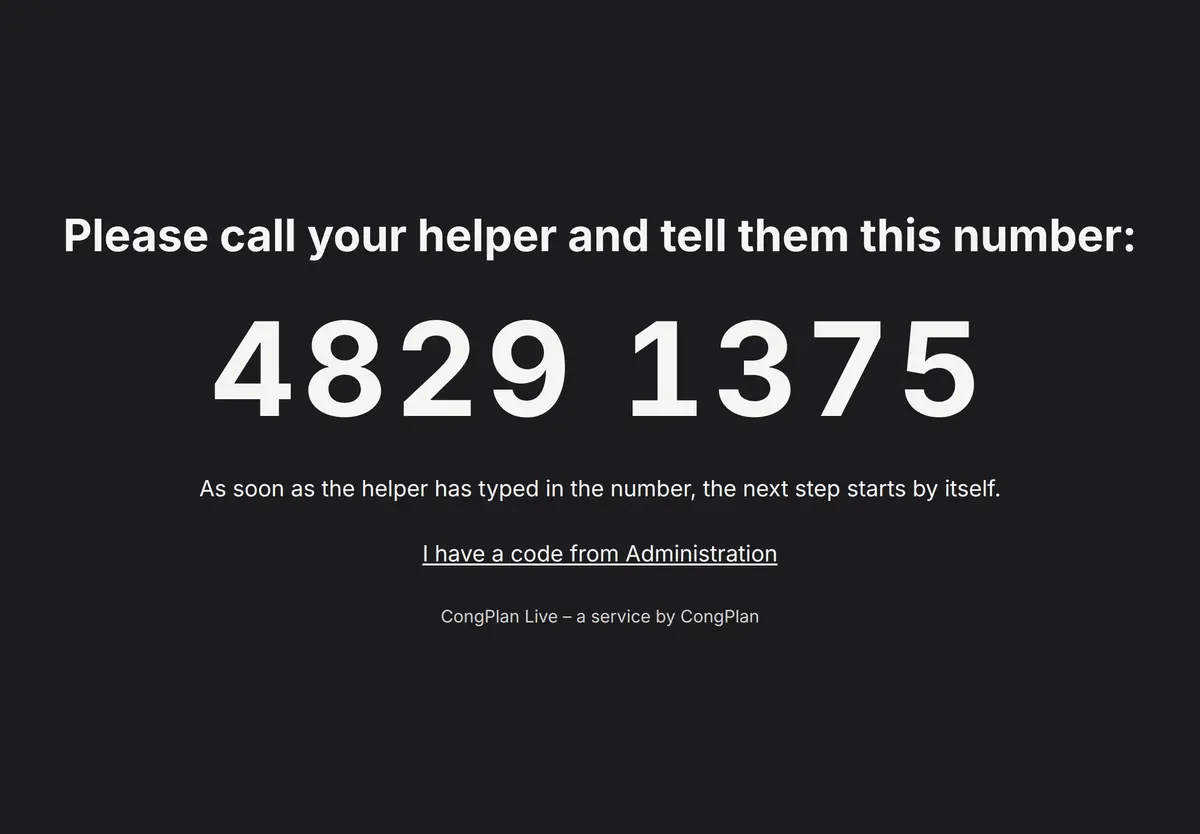
The iPad shows a large number. The person reads it out, and the helper types it into the administration. A helper next to the iPad can scan the QR code from the administration with it instead.
Wait without doing anything
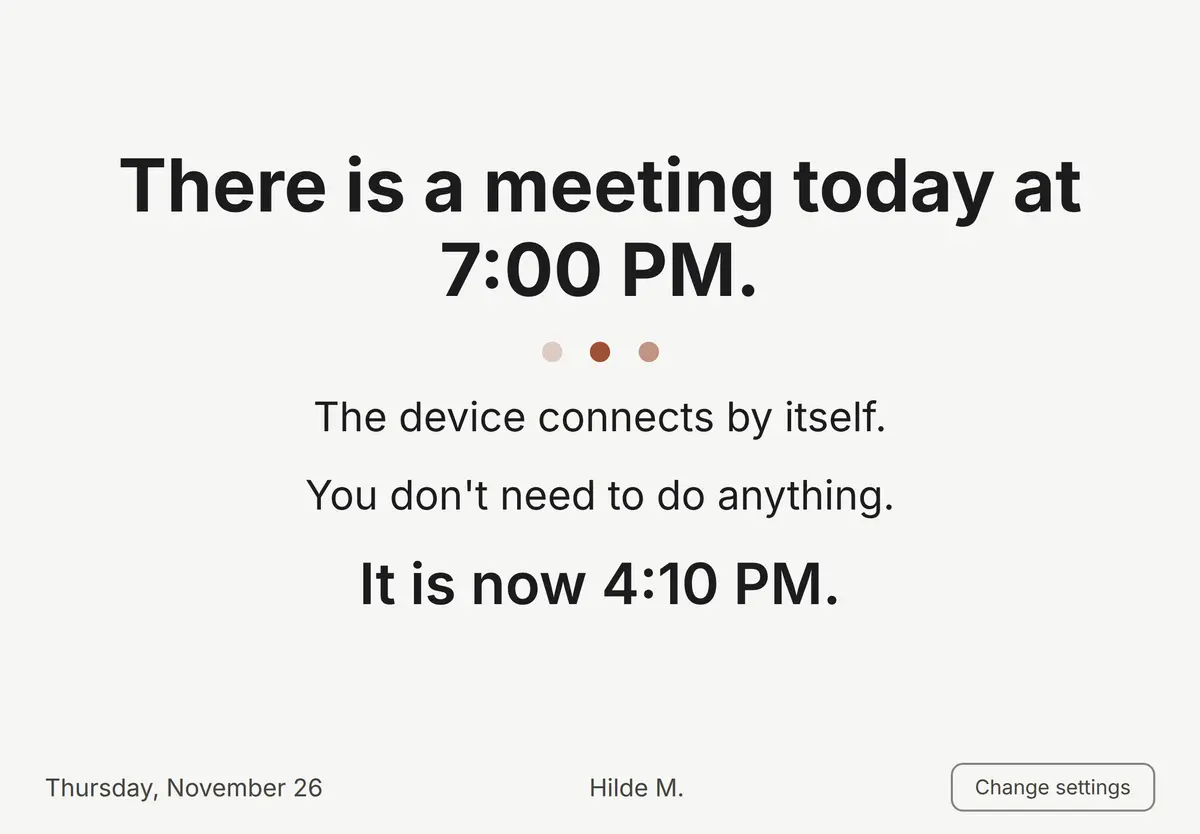
The waiting screen says in one sentence when the next meeting is. When it runs in Zoom, the iPad joins by itself from 20 minutes before the start.
Change something later
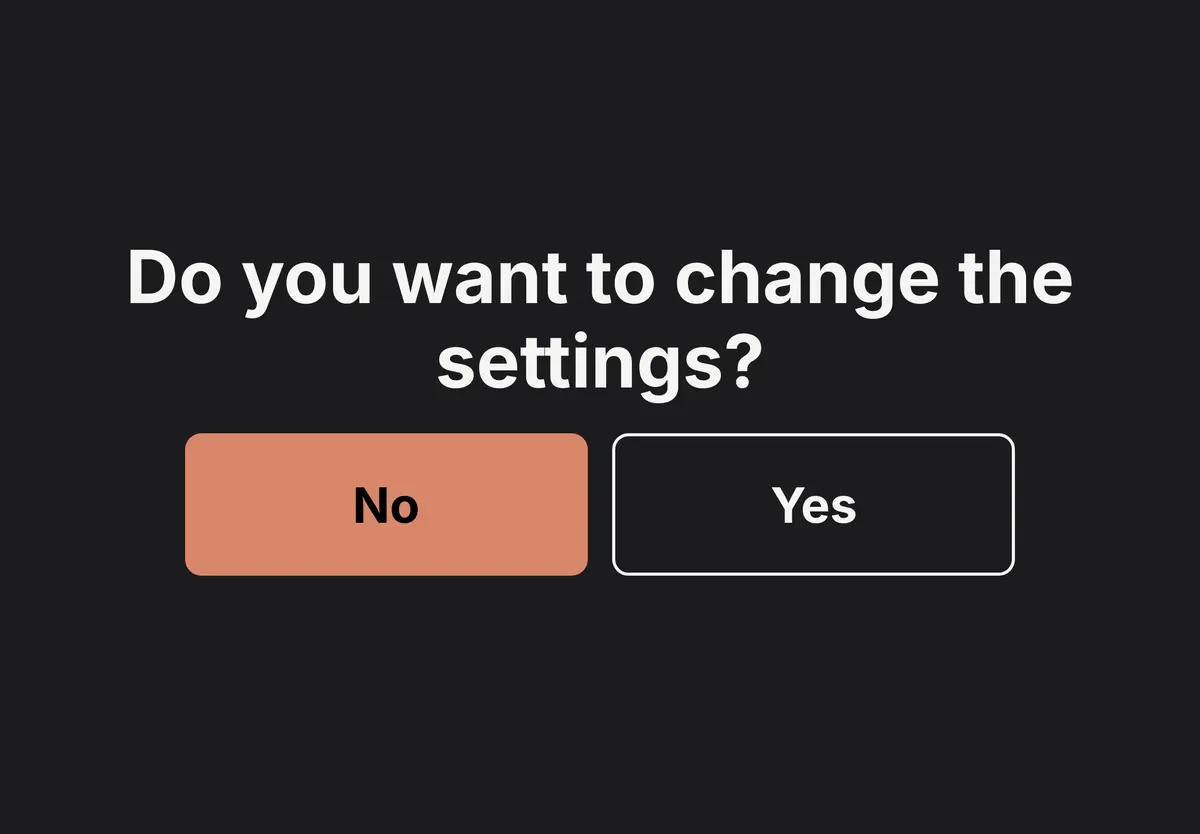
At the bottom right there is “Change settings”. The iPad asks first, with “No” and “Yes”. That way nobody ends up in the settings by mistake.
For the person at home
The picture comes first.
Whoever is speaking appears large. When someone shows pictures or a video, they fill the screen.
- Four large buttons. Microphone, camera, raise hand and leave. That is all there is in the meeting.
- A waiting room without puzzles. The screen says: “You are in the waiting room. The host will let you in shortly.”
- Back in with one tap. After leaving, the screen shows “Join again”.
- Help in one sentence. If the internet is gone or the battery is almost empty, the iPad says what to do and, where needed, names the helper with their phone number.

For helpers
Set up in seven short steps.
You guide the person through the setup, also over the phone. Every change applies at once.
- Everything in one place. Name in the meeting, permissions for camera and microphone, “Connect by itself”, what the technical team in the hall may do, and your name and phone number.
- Test run. The iPad briefly joins a test room. That shows you whether picture and sound work.
- Your number stays on the iPad. The helper's name and phone number appear only there, when something goes wrong.
For the congregation
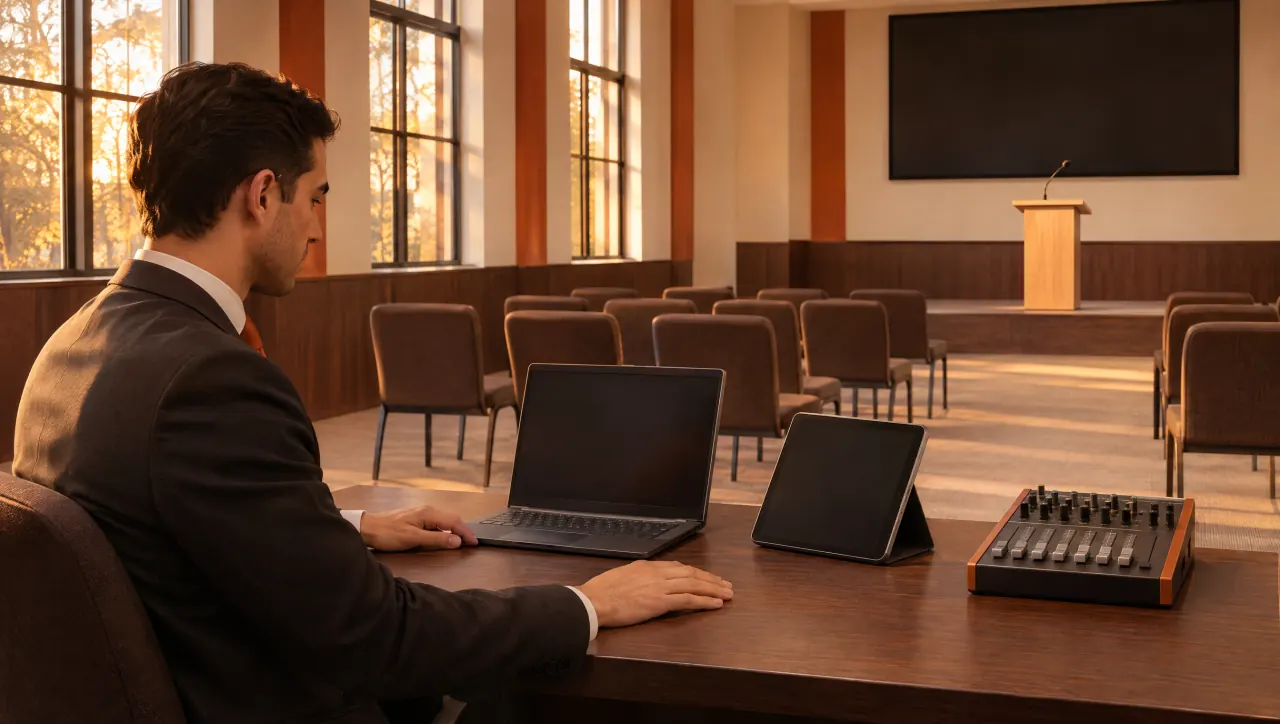
One administration in the browser.
There you enter the devices, the meetings and the permissions.
- Enter meetings once. With meeting ID and passcode, or automatically from the congregation's Zoom account. If a meeting is cancelled or moved, the iPad follows what runs in Zoom.
- The technical team in the hall helps. With permission, it sees battery, sound and connection, can switch the microphone off, ask whether the camera should go on and send a short message.
- Two roles. Technical pairs devices and helps during the meeting. Administration may also change meetings and permissions.

Privacy in plain words
The person decides
what the technical team may do.
Each permission is explained on its own during setup. Each one can be withdrawn later.
No attendance list
There is no list of who attended which meeting.
Camera only after “Yes”
The technical team can only ask. The camera turns on only after someone taps “Yes” on the iPad.
Status only with permission
Only with permission does the technical team see battery, sound and connection. Joining, leaving and errors then stay in the device history for 14 days.
Passcode encrypted
The meeting passcode is stored encrypted. A personal Zoom password stays with Zoom.
Get started
One iPad.
One administration.
In the administration you create your congregation, pair the first iPad and check picture and sound in the test run.
Zoom is a trademark of Zoom Communications, Inc.; Zoom has neither developed nor endorsed CongPlan Live.